Zenith External
Full configuration guide & loader Follow each step precisely to ensure a successful configuration.
Watch Setup Guide
Highly recommended to watch this video before proceeding to ensure a smooth and error-free injection process.
System Requirements
Before launching the loader, make sure your system has the following settings configured. All of these are required or the cheat will not work properly.
- TPM 2.0 — must be DISABLED in BIOS
- Secure Boot — must be DISABLED in BIOS
- Core Isolation / Memory Integrity — must be DISABLED in Windows Security
- Windows Defender — must be DISABLED (use Defender Control below)
- Xbox Game Bar — must be ENABLED and set up (see next step)
Xbox Game Bar Setup
The cheat uses the Xbox Game Bar overlay instead of the Discord overlay. Set it up exactly like this before launching.
- Press Win + G to open the Xbox Game Bar
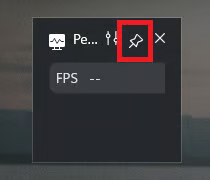
- Open the Performance widget in the top bar (see screenshot)
- Click the pin icon so the widget stays on screen — it should show FPS
- Enable the Click-Through icon in the top bar
- Close the Game Bar with Win + G — the pinned FPS widget must stay visible


Download the Loader
Get the latest Zenith External loader directly from our official download page.
- Click the Download Loader button below
- Save the file to a known location on your PC
- Make sure your antivirus does not delete the file
Troubleshooting
Infinite / Slow Loading Screen
Close the loader completely, then use a VPN to connect through Amsterdam, Netherlands.
- Fully close the Zenith loader
- Install a VPN (ProtonVPN, Windscribe or Mullvad)
- Connect to a server in Amsterdam, Netherlands
- Relaunch the loader
Timed Out Waiting for Overlay
The Xbox Game Bar overlay is missing or not set up. Configure it and try again.
- Press Win + G and open the Performance widget
- Pin the widget so the FPS counter stays visible
- Enable the Click-Through icon in the Game Bar
- Restart your PC and relaunch the loader
Failed to Acquire piddb Lock
Caused by anti-cheats or Core Isolation still being active.
- Fully close any anti-cheat (Riot Vanguard, FaceIt AC)
- Open Core Isolation in Windows and turn Memory Integrity OFF
- Restart your PC
- Relaunch the loader
Token Expired
Your Windows clock is out of sync with the server.
- Open Windows Date & Time settings
- Click Sync now to resync the time
- Relaunch the loader
Loading Closes While Generating Executable
Region / network issue while building the loader. A VPN through Amsterdam fixes it.
- Install a VPN (ProtonVPN, Windscribe or Mullvad)
- Connect to a server in Amsterdam, Netherlands
- Relaunch the loader
WdFilter / RuntimeDriversList Error
Windows Defender is interfering with the loader.
- Disable Windows Defender Real-time protection
- Use Defender Control to fully disable Defender (see Step 3)
- Restart your PC and relaunch the loader